- Projects
- Docx Report Generator
This project was created based on requirements to output reports based on Microsoft Excel (.xlsx) data onto reports created in Microsoft Word (.docx) format. These reports can also be automatically be converted to PDF format at runtime.
Example Report
The repository is bootstrapped with sample configuration, source data, templates, and outputs. On this page, I’ll walk you through the sample template for journaling.
Main Configuration
The main configuration is used to identify key data points that will be used for the report generation process. The main purpose of this document is to inform the Python script of what data should be referenced, what template to use, how to read the template, and where the output file should be placed.
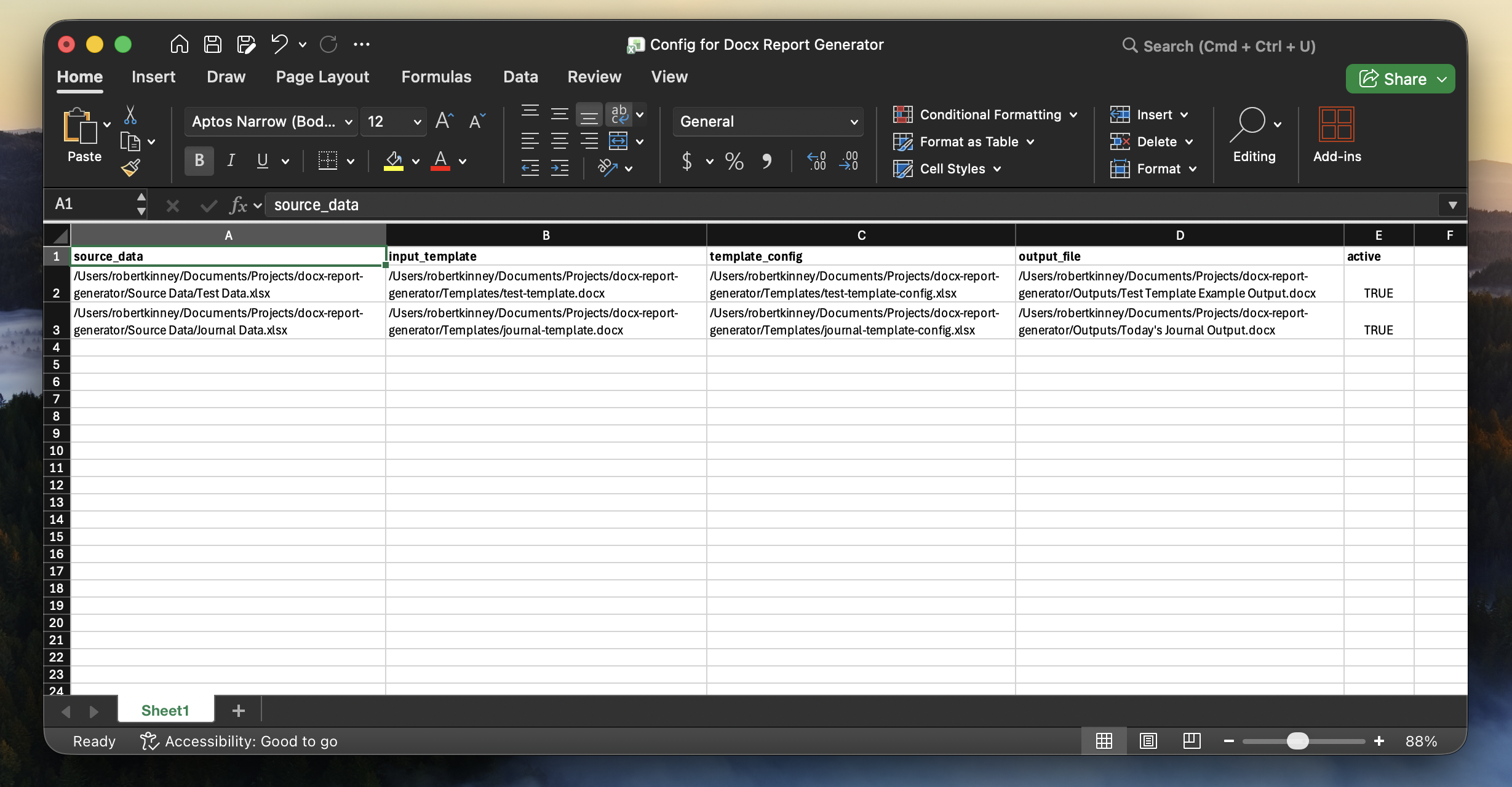
| Column | Value | Description |
|---|---|---|
| Source Data | ./Source Data/Journal Data.xlsx | Full path to Excel Input file |
| Input Template | ./Templates/journal-template.docx | Full path to Word Template file to be referenced |
| Template Config | ./Templates/journal-template-config.xlsx | Full path to Excel Template Config file |
| Output File | ./Outputs/Today’s Journal Output.docx | Full path to desired Word document output location |
| Active | TRUE | Mark TRUE to execute, FALSE to skip |
Source Data
This Excel file acts as the source data for the report, which can be placed across different pages. This file can either be manually assembled or automatically generated before report runtime.
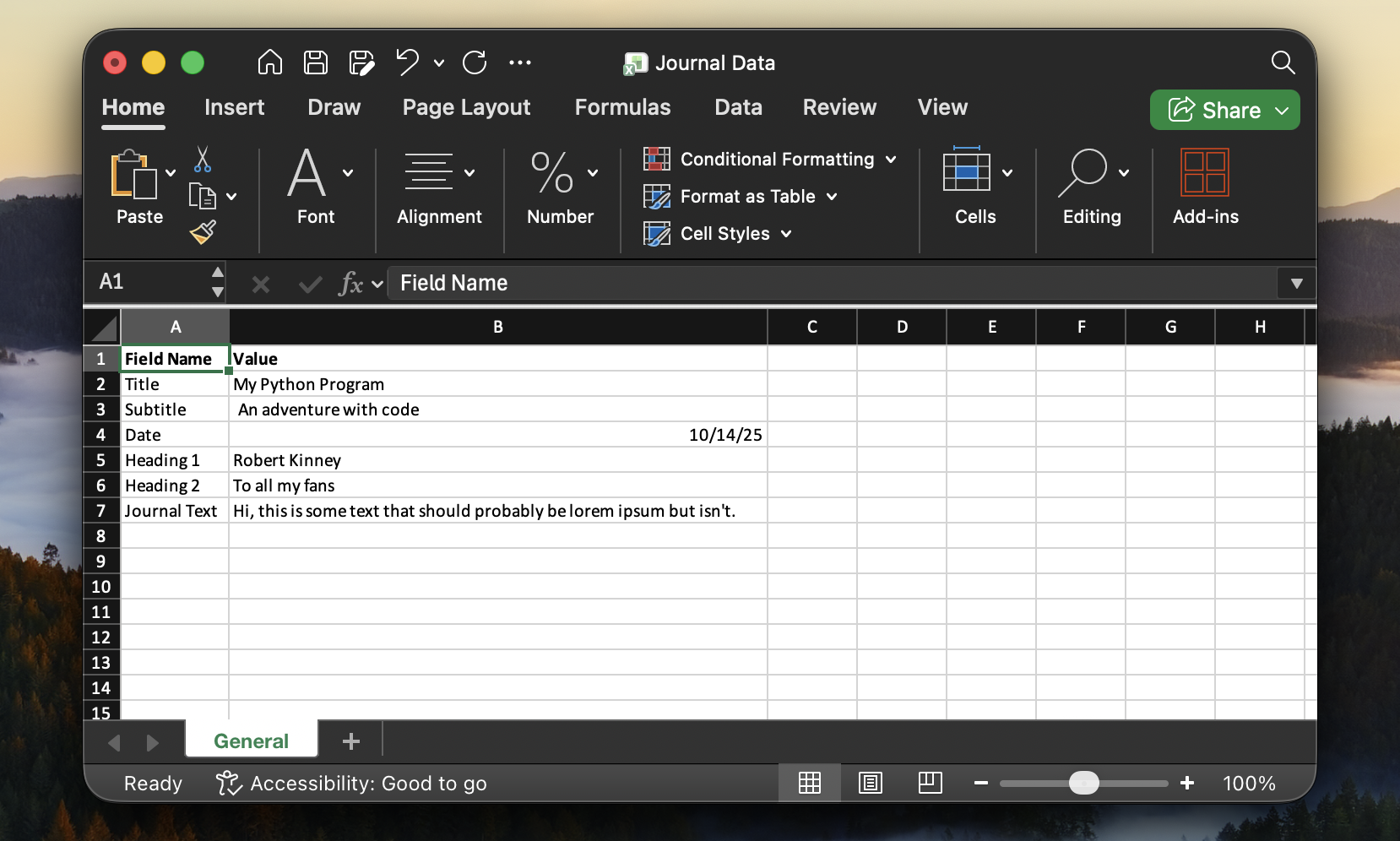
For our example, the source data file contains a transposed column set. This is the structure for any text replacements, but regular tables can be passed through the generator as well.
Template
Templates are comprised of two items, the Word document itself as well as its configuration file. The configuration file lets the generator know what fields to look for as well as what values to replace them with.
Template File
This file should be thought of as the main template that will be copied and overwritten by the report generator process.
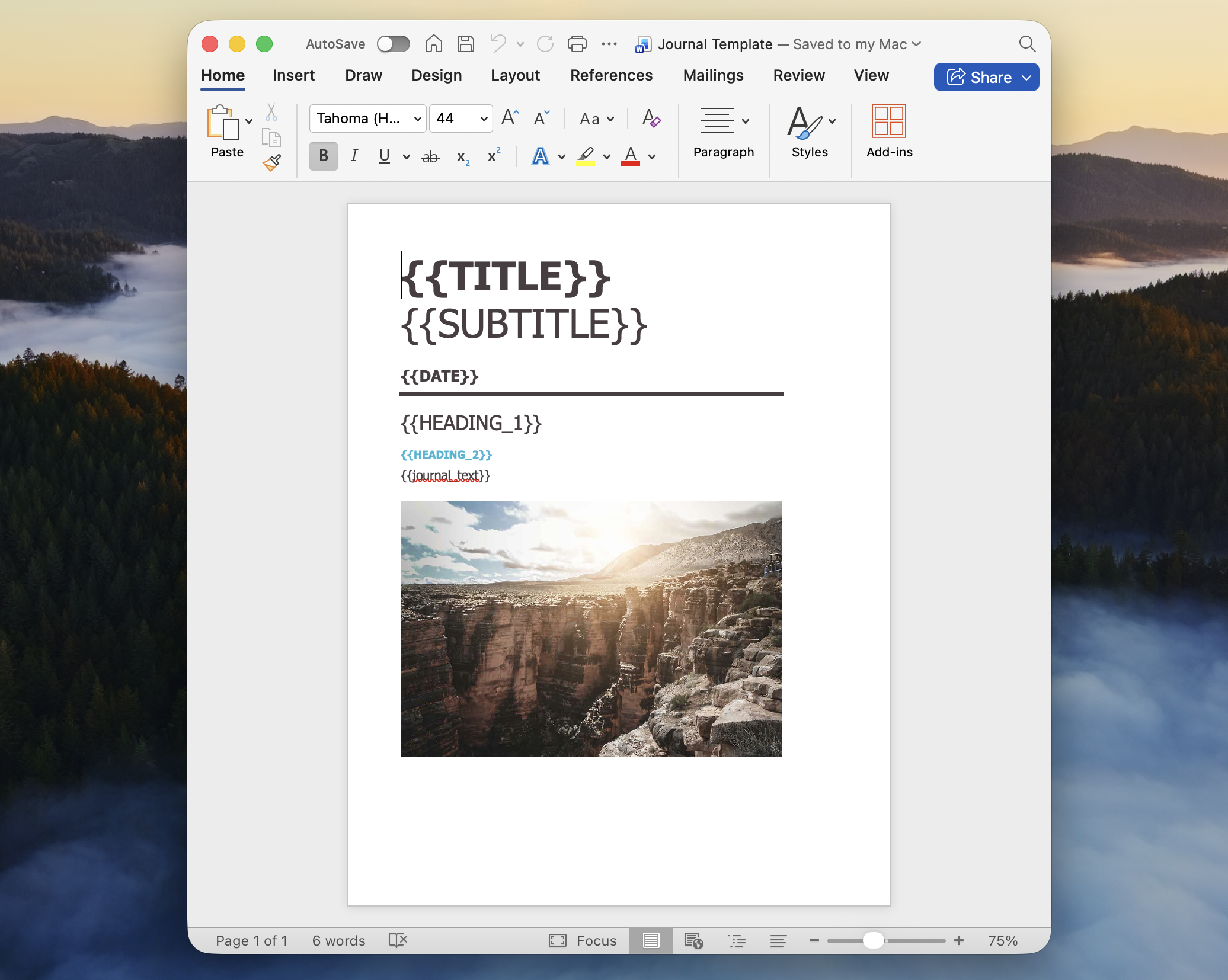
In this template, you can see that text replacements are signified with double curly braces wrapped around the identifier string. For example, {{title}} will be a unique identifier for replacement within the Python script.
Additionally, image replacements are set in this template by providing Alt Text to the image found in the report.
Lastly, elements in this page are configured to follow the color theme of the Word document rather than individually selected colors. This allows for the generator process to overwrite the theme with values set in the template configuration file.
Template Configuration
The configuration file is used to identify the different types of replacements that should be made during the generation process. These are separated into Text, Table, Chart, Color, and Image replacements.
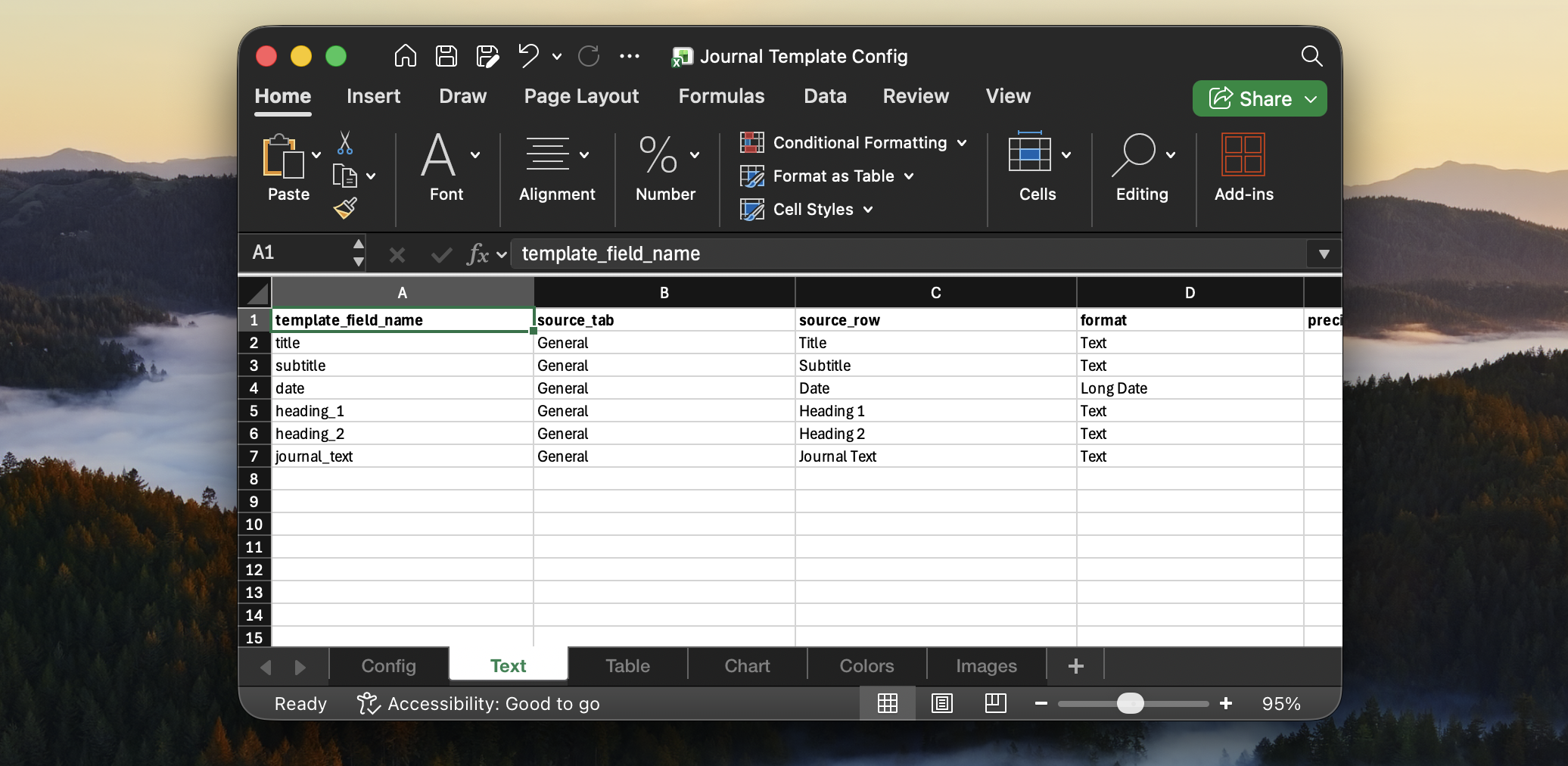
Within this configuration file, you can see that each of the fields in our Word document are configured to have a replacement value identified in the source data file. There is also the flexibility to configure the formatting and output precision of the data placed in this field.
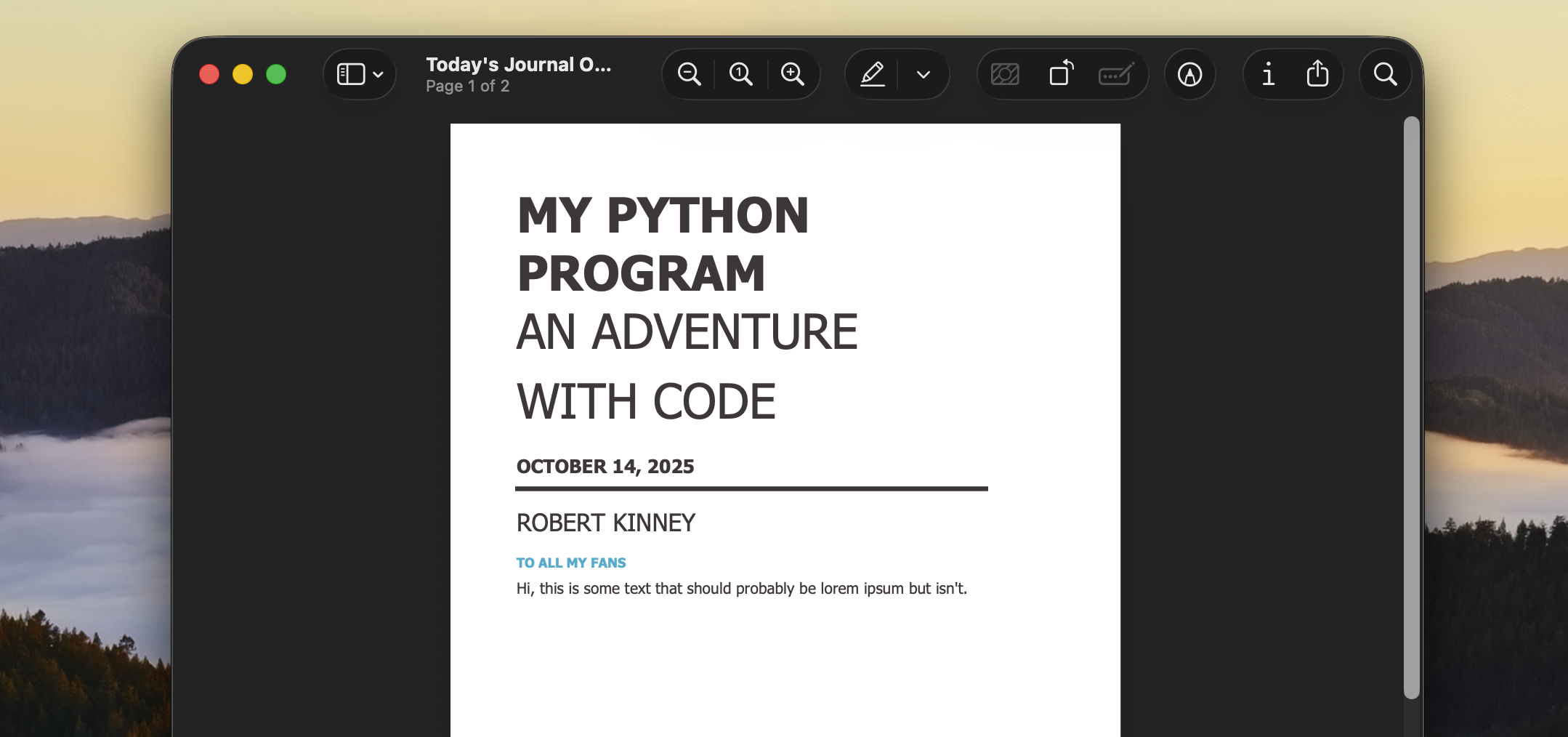
Output
Outputs are generated in Word format by default, but PDF documents can also be generated via a configuration setting in the template config.
Conclusion
This document only outlines a small report, not diving into the full suite of possibilities within the generator. For more information, I recommend reading the documentation inside the GitHub Repository.